
When adding new images or updating images on your website, it’s best to optimise those images before you upload them. This includes:
- Optimising Image File Size
- Resizing Images
- Using the correct File Type
- Correctly naming Image Files
All new websites we create come with an Image Optimization Plugin that provides many aspects of image optimisation, however, it’s still crucial to optimise your images before uploading to improve loading speeds, search engine rankings, and overall site performance.
Optimising Image File Size
We recommend using Photoshop or a free alternative such as Gimp to correctly resize your images and reduce their File Size. There are also online tools that can compress image file sizes for free, such as tinypng.com.
For best results:
- Optimize your images in Photoshop or GIMP.
- Apply final compression using TinyPNG, TinyJPG, or Squoosh.
- Allow your website’s plugin to handle WebP conversion with automatic fallbacks to ensure full compatibility.
What is a good File Size
You should always aim to get your image file sizes as small as possible without having a noticeable impact on the visual quality. This helps with website speed, responsiveness, Core Website Vitals and SEO.
As a general rule of thumb, you should aim for most images on your website to be less than 300kb, however, most should be much smaller than this. When saving an image, first make sure it has been resized to the correct dimensions, then reduce the output quality until there is a noticeable change in the visual quality.
It may not be possible to get some larger or more detailed images below 300kb. In this case, reduce the image size as much as possible without there being a significant impact on visual quality.
Resizing Images (Pixel Dimensions)
Not to be confused with reducing the File Size, resizing images refers to changing the dimensions of the image.
For example, using an image that is 1920px x 1080px in an area that is only 300px x 168px is bad practice as the File Size will be much bigger than it needs to be, even if you optimise it.
As with Optimising your image File Size, for Resizing images we recommend tools like Photoshop and Gimp. There are also free online alternatives such as Adobe Spark.
Finding Image Dimension:
When adding images to your website you want them to be no bigger than the biggest size they appear on your website. If they are too big, the File Size will be unnecessarily high and if they are too small, they will be scaled up which can lead to poor visual quality.
In most cases, your images will be shown at their biggest when viewed on Desktop Devices (Computers, Laptops, etc).
In some cases, images may appear bigger on Tablet and Mobile devices as the layout of the page adapts to the different screen sizes. So it is important to check exactly where your image displays at its biggest and use those dimensions when resizing.
In Chrome
To find image dimensions in Chrome, simply:
- Open the page where your image will display
- Ensure your Browser Window is Fullscreen
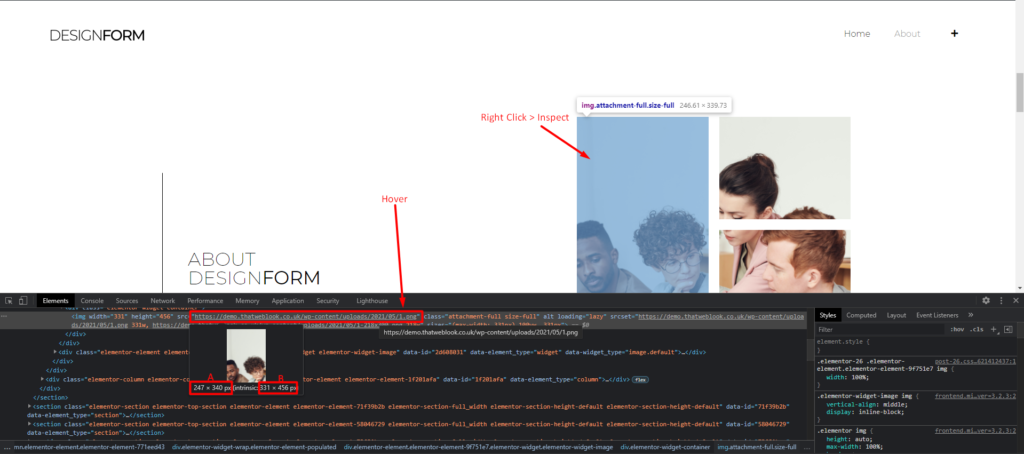
- Right-click on the image and click Inspect
- Ensure the Inspect Window that appears is docked to the bottom of your screen.
- Hover over the image in the Insect Window
- You will see 2 values:
- (A) is the dimensions the image is being displayed at
- (B) is the original dimensions of the image.
(A) is the value you should use when Resizing your images.
In the example below, (A) is 247px x 340px and (B) is 332px x 456px. In this case, the actual image dimensions (B) are bigger than the area it is being displayed in (A), so the image should be resized for the best possible results.
Using the correct Image File Type
Images can come in many different File Types (jpg, png, gif, svg). Each with their own pros/cons. Some filetypes can be optimised more than others, or work better for different types of images.
- webp – A modern format that offers superior compression and quality, but let your optimisation plugin handle the conversion and fallback to ensure compatibility.
- jpg/jpeg – best used for photographs or graphics with lots of colours and detail.
- png – best used for simple graphics with few colours or any image with transparency.
- svg – best used for simple graphics, icons, logos, etc. svgs are vector-based meaning they retain the same quality when scaled.
- gif – best for very simple graphics with very few colours and transparency and any image with animation.
Correctly Naming Images
For the best SEO results. It’s good practice to name your images descriptively.
For example, if your image is on a page relating to web design in a section talking about WordPress, you want to name it something like wordpress-web-design.jpg.